Loading your workspace
Connecting to this notification server…
Sign in with your iPhone
Use the account on your phone to open this computer’s workspace. No password is needed here.
- Open Questline on your iPhone and sign in with Apple.
- Go to Settings → Sign in on computer, then scan this QR code.
- Match the code below and approve the sign-in on your phone.
Preparing your QR code…
Match this code on your phone
Using the iPhone Simulator?
Copy the one-use link and open it in the simulator. Keep this sign-in link private.
Only approve a sign-in you started on this computer. Never scan a sign-in code someone sends you.
Apple sign-in is available in the iPhone app. This computer connects only after you approve it on your phone.
Apps
Manage notifications for your in-app purchases and subscriptions. Paid app downloads are not included.
Watch the setup tutorial Find your app and connect Apple notifications in App Store Connect. Watch video 25 seconds · YouTube Opens in a new tab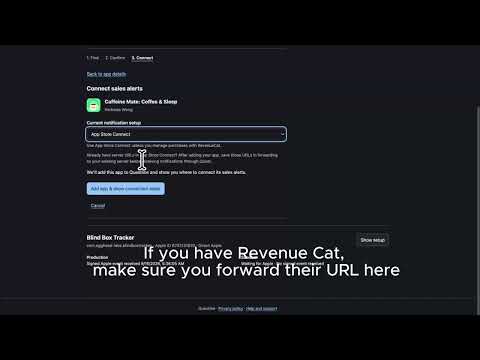
- 1. Find
- 2. Confirm
- 3. Connect
Find your app
Search by name or paste a link. We’ll get the app details for you.
Can’t find your app?
In the App Store, choose Share → Copy Link on your app’s page, then paste it above. A published app’s App Store Connect link or numeric Apple ID works too.
For unpublished apps, or if search isn’t working.
Confirm your app
Activity
Sale amounts are transaction activity, not net proceeds or payouts. App Store Connect financial reports remain the source of record.
Settings
Push preferences
Connected iPhones
In the iPhone app, enter this server’s address, sign in to the same account, and allow notifications. To sign in on another computer, use Settings → Sign in on computer on your phone.
Recent push delivery attempts
“Accepted by APNs” means Apple accepted the push. It does not prove that a phone displayed it; notification permissions, Focus, and connectivity still apply.